📂 Log Files
Supported Formats
- WPILOG (.wpilog) - Produced by WPILib's built-in data logging, AdvantageKit, and the FIRST Driver Station. Universal logging can be used to capture external logs (e.g. vendor logs) to a WPILOG file.
- Hoot (.hoot) - Produced by CTRE's Phoenix 6 signal logger.
- REVLOG (.revlog) - Produced by REV Robotics'
StatusLogger. - Road Runner (.log) - Produced by the Road Runner library for FTC.
- CSV (.csv) - Comma separated values, matching the format exported by AdvantageScope in the "CSV (Table)" or "CSV (List)" modes. See here for details.
- NI Driver Station logs (.dslog and .dsevents) - Legacy, produced by the NI FRC Driver Station (2010-2026). AdvantageScope automatically searches for the corresponding log file when opening either log type.
- RLOG (.rlog) - Legacy, produced by AdvantageKit 2022.
Hoot log files can only be opened after agreeing to CTRE's end user license agreement. AdvantageScope displays a prompt to confirm agreement to these terms when opening a Hoot log file for the first time.
Opening Logs
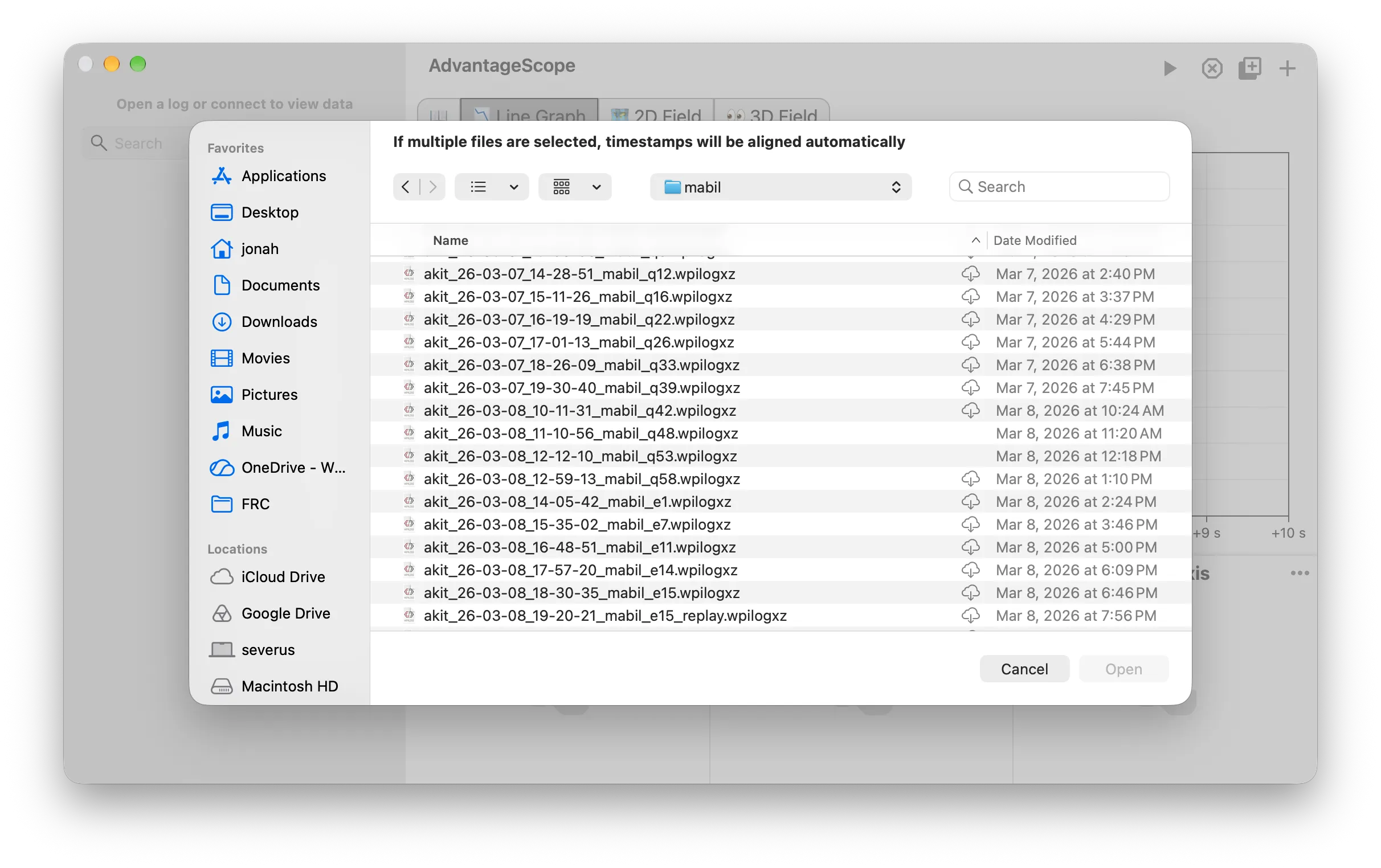
In the menu bar, click File > Open Log(s)..., then choose one or more log files from the local disk. Dragging a log file from the system file browser to the AdvantageScope icon or window also causes it to open.
If multiple files are opened simultaneously, the timestamps will be aligned automatically. This enables easy comparison of log files from multiple sources. See the Timestamps page for details on timestamp display options.
Adding New Logs
After opening a log file, additional logs can be easily added to the visualization. Timestamps will be realigned automatically to synchronize with existing data.
In the menu bar, click File > Add New Log(s)..., then choose one or more log files to add to the current visualization. The fields from each log will be recorded under tables named Log0, Log1, etc.
Driver Station Layout
AdvantageScope includes a built-in layout designed for viewing logs and live data from the FIRST Driver Station, with pre-configured tabs for console output, communication metrics, battery voltage, CPU utilization, and joystick inputs.
When opening a WPILOG file generated by the FIRST Driver Station on desktop, AdvantageScope prompts to open the log in a separate window using the Driver Station layout. Any window can also be switched to this layout manually by clicking File > Reset to DS Layout. In AdvantageScope Lite for the FIRST Driver Station, this layout is used by default (and can be restored by clicking Tabs > Reset to Default Layout).
Downloading From the Robot
Configuration
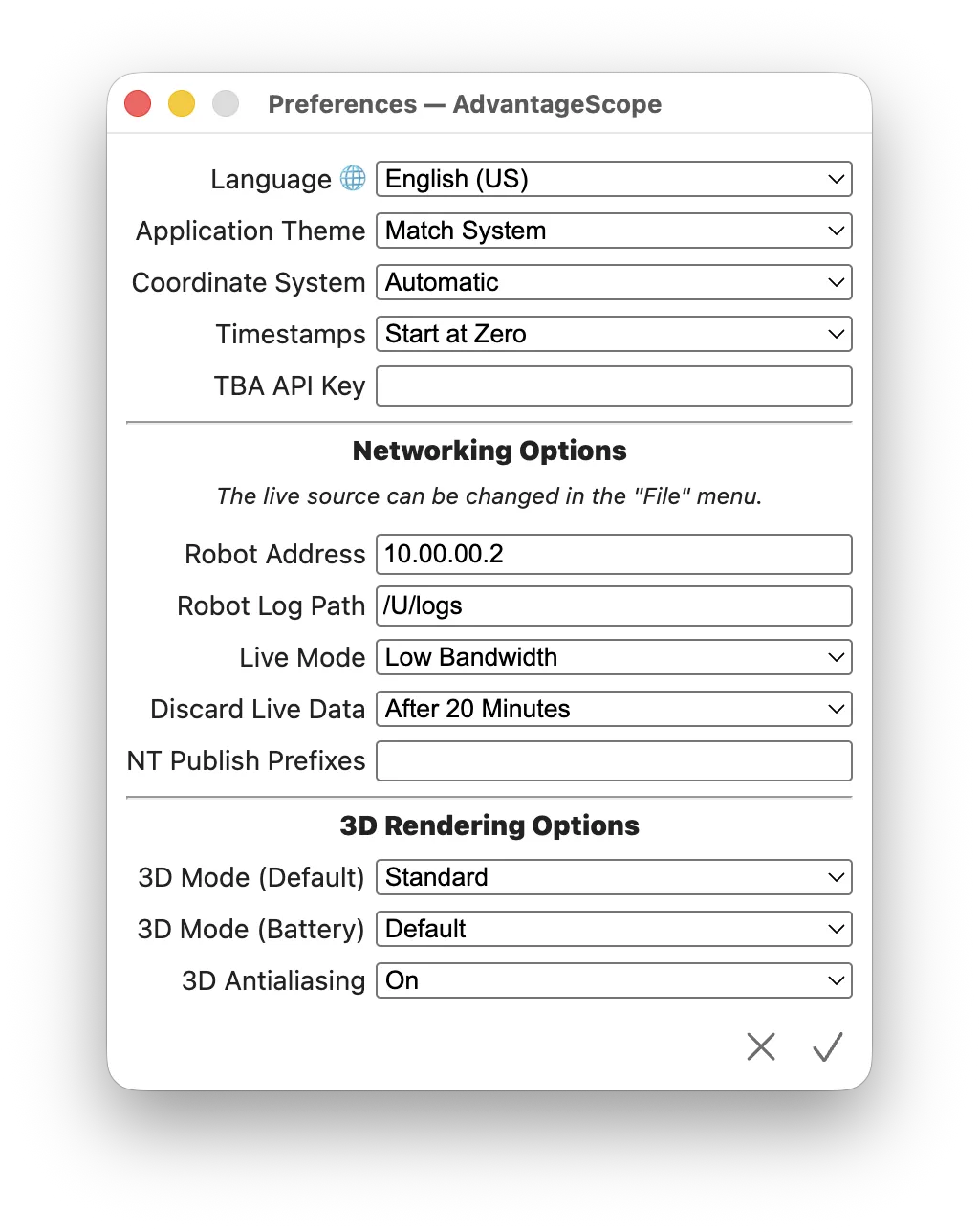
Open the preferences window by clicking App > Show Preferences... (Windows/Linux) or AdvantageScope > Settings... (macOS). Update the robot address and log folder.
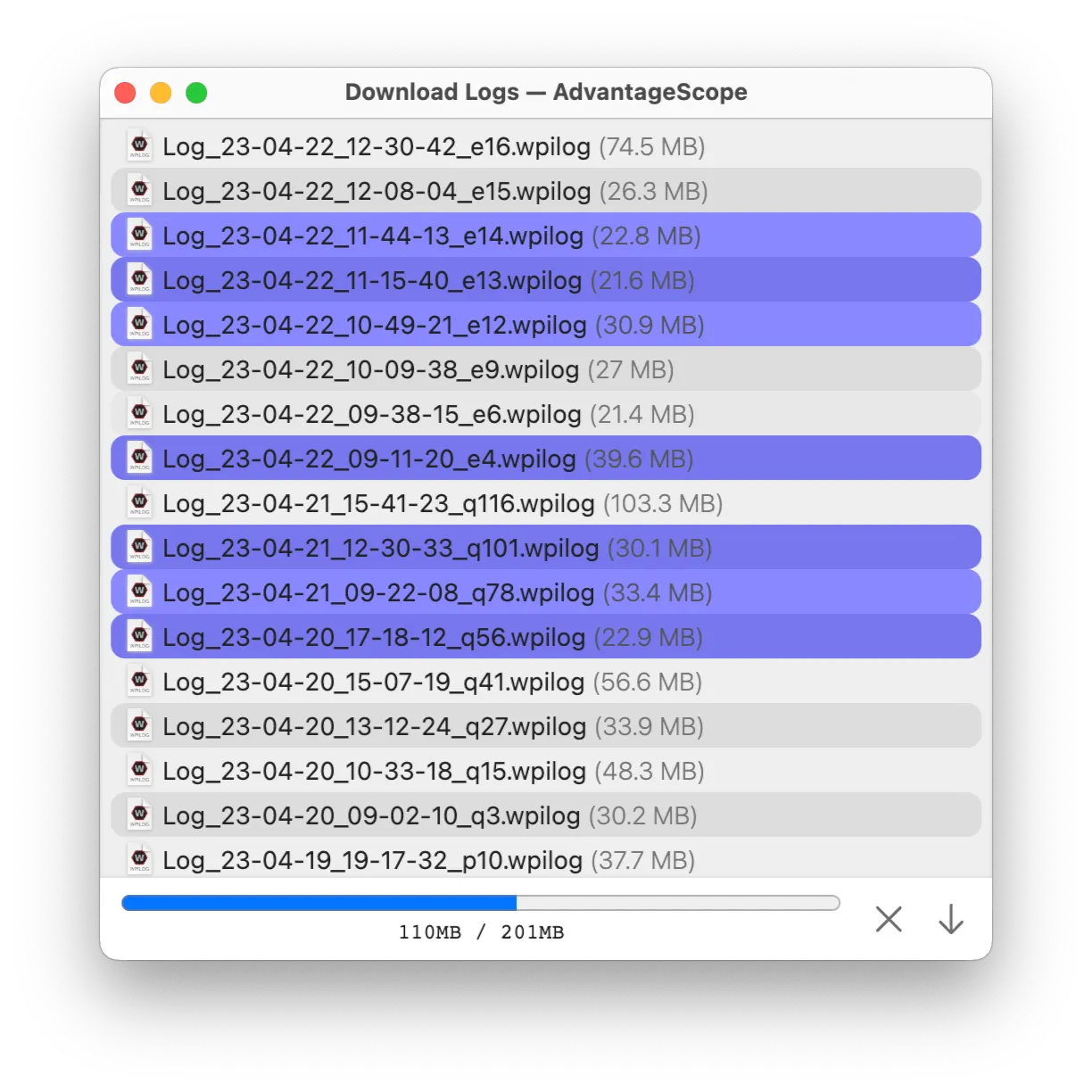
Click File > Download Logs... to open the download window. Log downloading is supported on Systemcore and the roboRIO. Once connected to the robot, available logs are shown with the newest at the top. Select one or more log files or folders to download (shift-click to select a range or cmd/ctrl + A to select all). Then click the ↓ symbol and select a save location.
When downloading multiple files, AdvantageScope skips any that already exist in the destination folder.
CSV Formatting
CSV column names must be either "Timestamp, Key, Value" or "Timestamp, (Key), (Key), etc". Timestamp values are in seconds. The list below shows the expected format of common value types. Note that exporting and reimporting log data as a CSV is lossy, since CSV does not support complex field types.
- Booleans:
trueorfalse - Strings:
"(value)"- Example:
"Hello world"
- Example:
- Arrays:
[(value); (value); (value)]- Example:
[1; 2; 3]
- Example:
- Bytes: hexadecimal, separated by
-- Example:
4d-41-36-33-32-38
- Example: